How to change the name or password for WiFi TP-Link TD W8901N WiFi / TP-Link TD W8901G WiFi
How to change the name or password for WiFi TP-Link TD W8901N WiFi / TP-Link TD W8901G WiFi
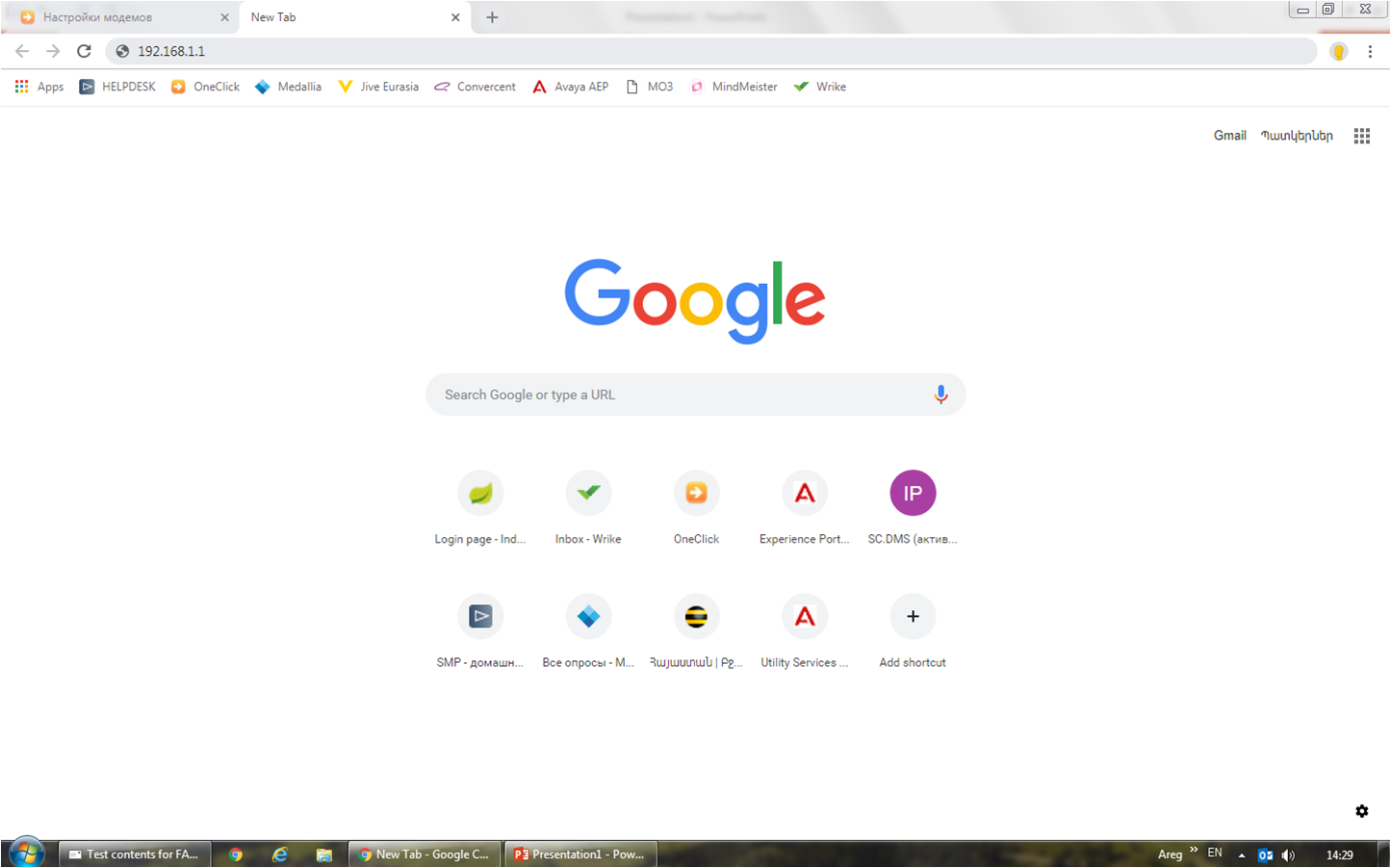
1. Open the browser tab.
2. In the address bar, enter 192.168.1.1
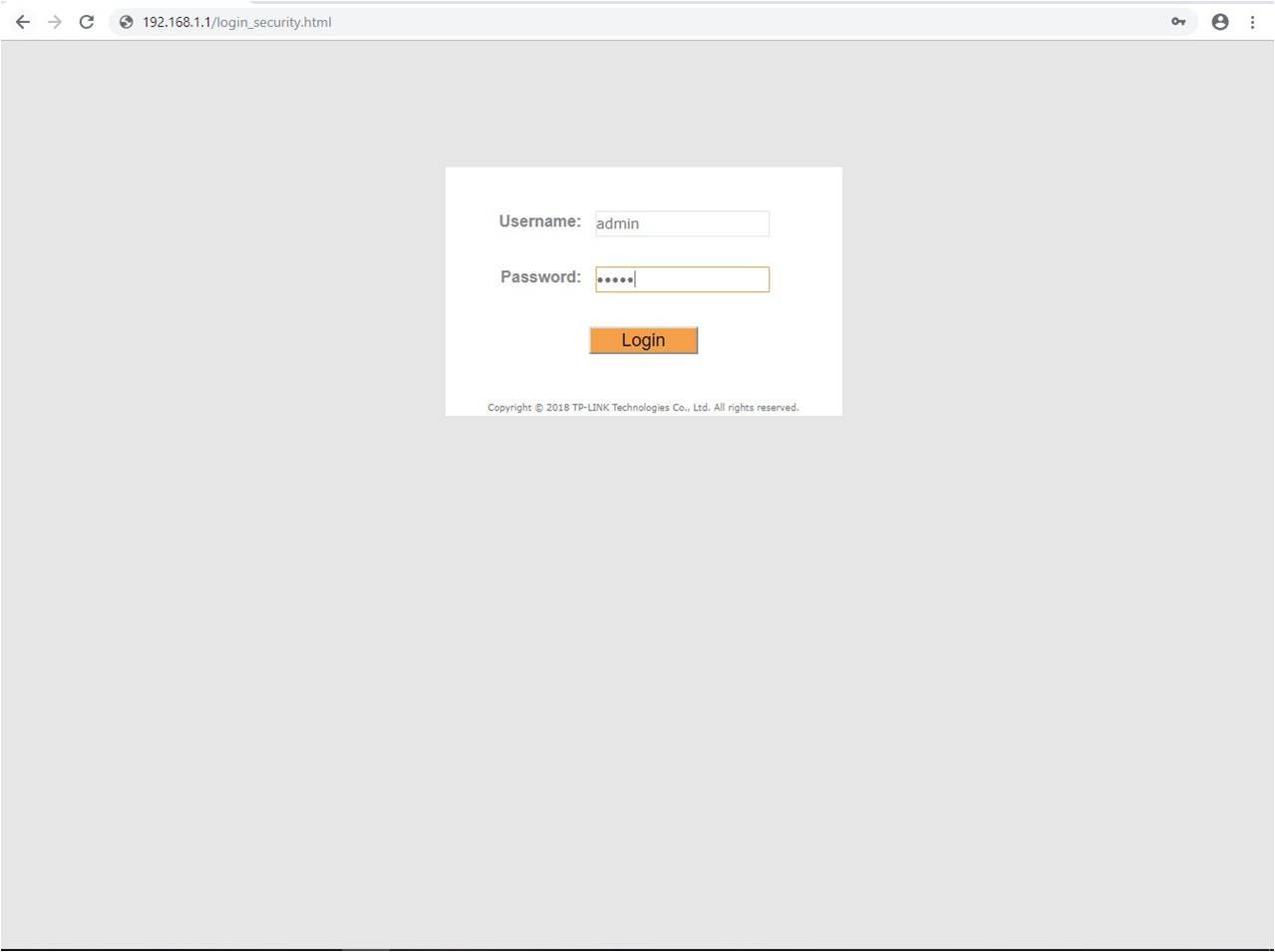
In the opened window, in the fields - “username” and “password”, you need to write - admin, then click on “Login”.
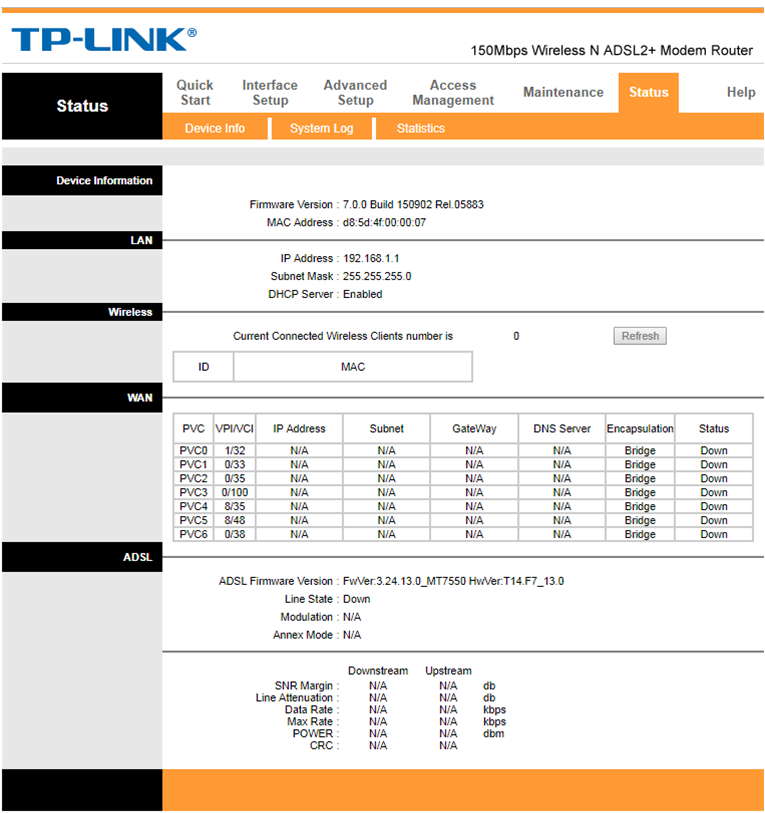
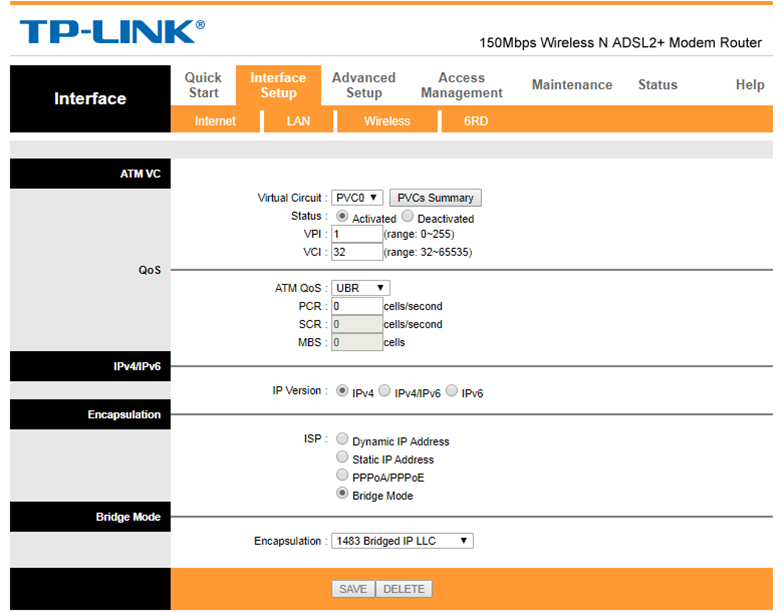
1. Open section «Interface Setup»
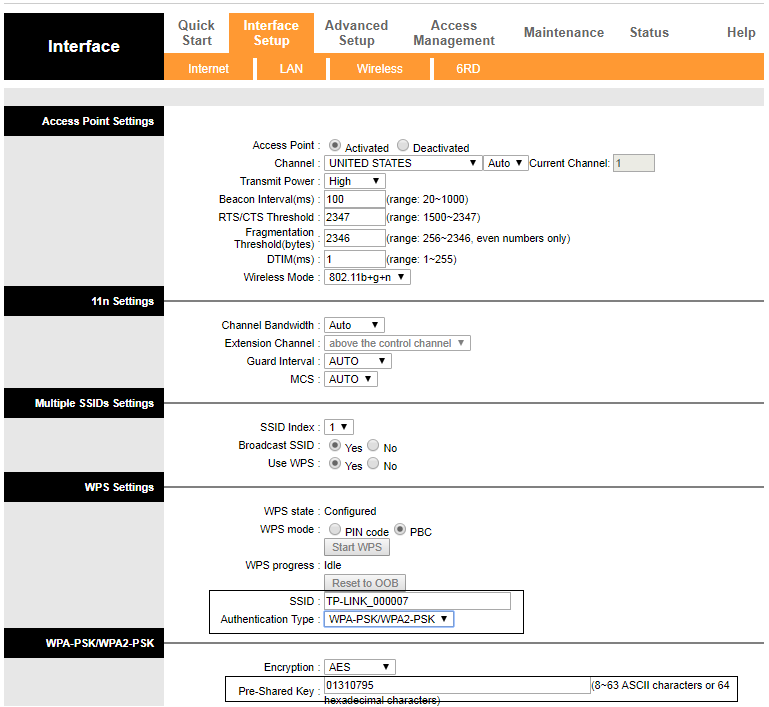
1. In the section «Interface Setup» open «Wireless».
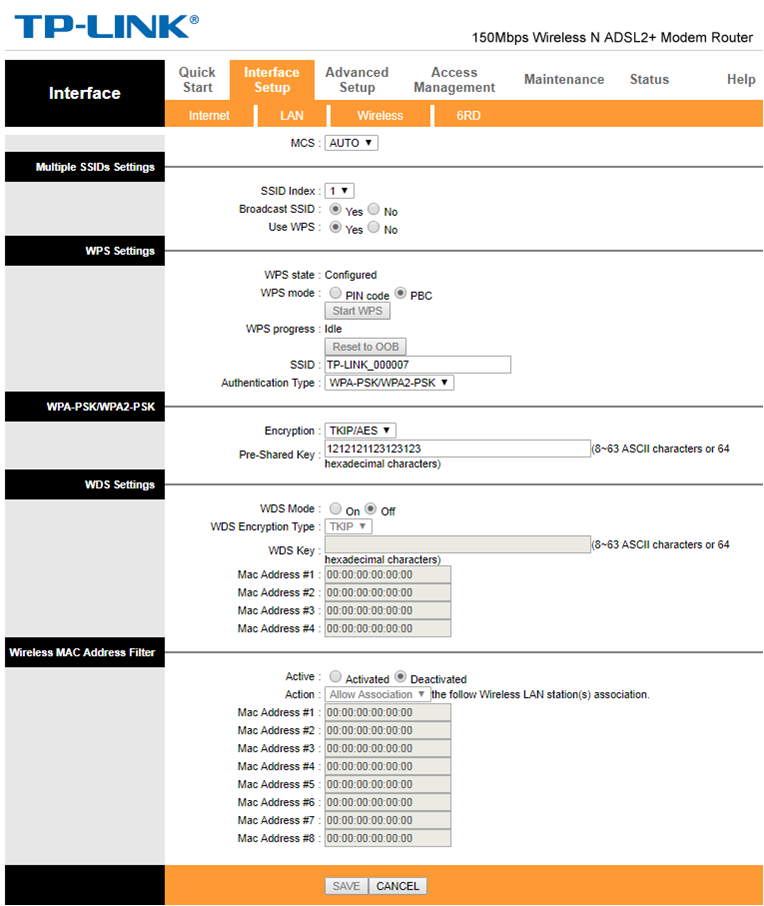
In the window that opens, change the name and password for WiFi:
1. In the field "SSID" - write down a new name for WiFi.
2. In the field "Authentication Type" – select WPA-PSK/WPA2-PSK.
3. In the field "Pre-Shared Key" - write down the new password for WiFi (at least 8 characters)
After changing the Name and Password, click “Save”.